
A loud laptop fan can ruin a quiet vocal take, especially in a small bedroom or apartment. You may not need a new microphone first. Start by moving the laptop out of the direct mic path, recording during cooler low-load moments, setting gain correctly, and checking a short room-tone test before singing.
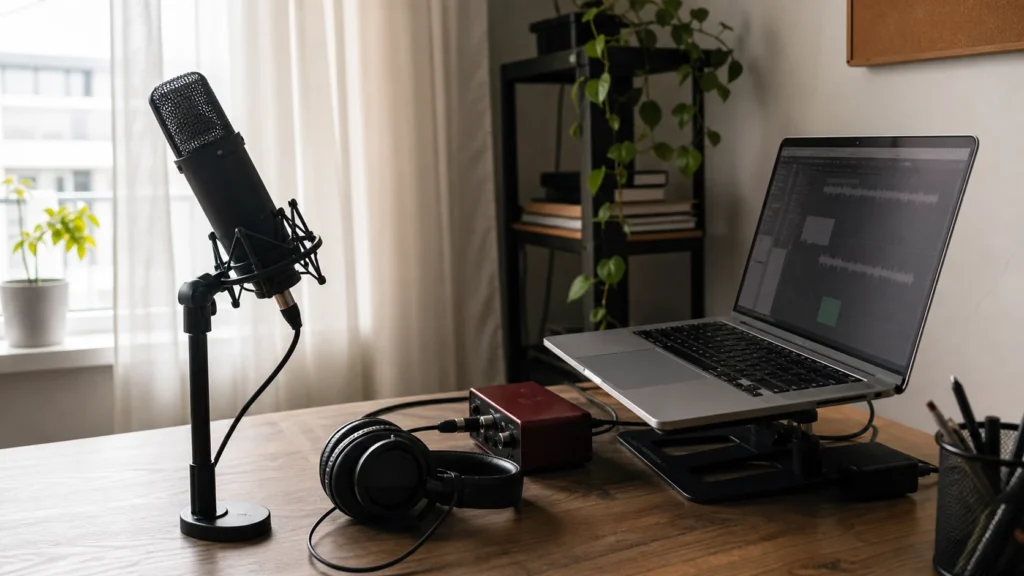
MusicalCritic may earn a commission from qualifying links. Illustrative home recording setup; no exact product model or hands-on test is pictured.
Quick Answer
To record vocals when your laptop fan is loud, move the microphone away from the fan side, angle the mic toward your voice and away from the laptop, keep the laptop on a solid surface with airflow, close heavy apps, record a silence test, and avoid raising gain to make a quiet vocal louder.
Who This Is For
This is for beginner home recordists using a laptop on the same desk as the microphone. It applies to USB mics, XLR mics with an interface, bedroom desks, dorm rooms, and apartment setups where there is no separate control room.
Move The Laptop Out Of The Mic Path
The easiest fix is often physical placement. Put the laptop to the side or slightly behind the microphone rejection area instead of directly in front of the mic. If you use a cardioid-style microphone, avoid pointing the front of the mic at the fan vent. Even a small angle change can reduce fan noise in the take.
Do Not Block Airflow
Putting a blanket over a laptop is a bad fix. It can make the fan run harder and may create heat problems. Use a solid surface, leave the vents open, and avoid soft bedding under the computer. If the fan ramps up after a few minutes, let the laptop cool before recording the real take.
Reduce Load Before Recording
Close apps you do not need, freeze heavy software instruments if your recording software supports that workflow, and avoid exporting, rendering, or video calls during a vocal pass. A lighter session can keep the fan calmer long enough to capture a clean take.
Run A Fan Noise Test
| Test | What to do | Pass sign |
|---|---|---|
| Silence test | Record 10 seconds with no singing | Fan is not obvious at normal listening volume. |
| Loud phrase test | Record the loudest expected line | Vocal is clean without clipping. |
| Position test | Move laptop to side and repeat | Fan noise drops without making performance harder. |
Keep Gain Sensible
If you sing quietly and raise input gain too much, the microphone may capture more room and fan noise. Try a comfortable singing level, a closer but controlled mic position, and a pop filter before boosting gain. A clean moderate signal is better than a loud noisy one.
When To Use A Longer Cable Or Stand
If the laptop must stay loud, distance helps. A longer USB or XLR path, a stable floor stand, or a desk layout that separates the mic from the laptop can reduce fan pickup. Do not buy random long cables without checking the connection type and practical cable path first.
Common Mistakes
Do not cover the laptop with fabric. Do not aim the microphone at the fan vent. Do not raise gain because the headphone mix is quiet. Do not record full takes before checking room tone. Do not assume noise removal will fix every fan problem cleanly.
What To Read Next
For apartment noise setup, read quiet microphone setup ideas for apartment vocals. For gain basics, read how to set input gain for home vocal recording. For a compact desk setup, read small desk vocal recording setup for bedrooms.
FAQ
Can noise removal fix laptop fan noise?
Sometimes it can reduce steady fan noise, but it may also damage vocal tone. Preventing the noise during recording is safer.
Is a dynamic mic better near a loud laptop?
It can help in some setups, but placement and gain still matter. A poorly placed dynamic mic can still capture fan noise.
Should I record farther from the laptop or closer to the mic?
Usually both: move the laptop farther from the mic path and keep your voice close enough that you do not need excessive gain.