
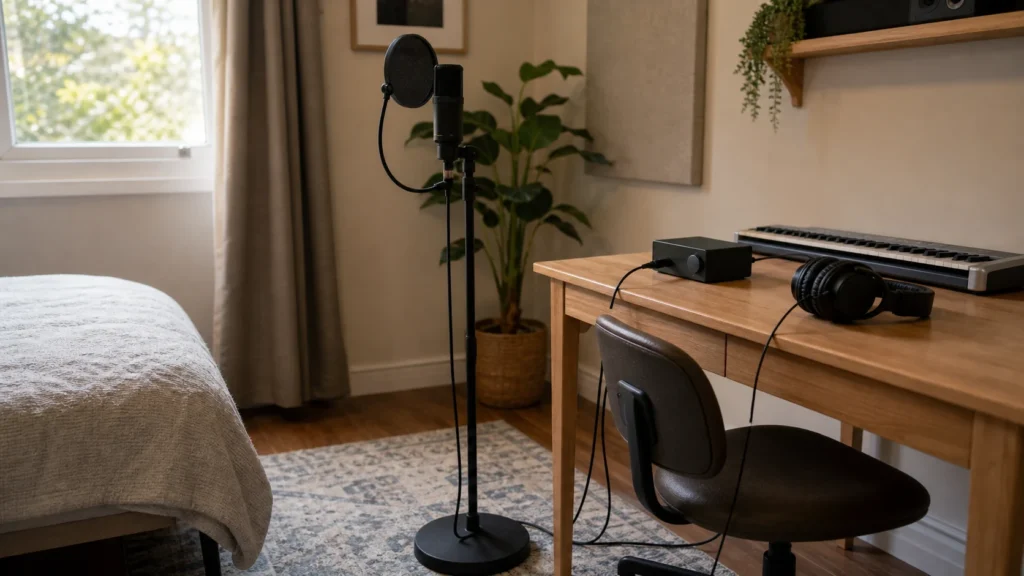
Desk vibration can make a beginner vocal take sound thumpy, uneven or noisy even when the microphone itself is fine. The fastest fix is to separate the microphone from the desk, stop touching the desk during takes, manage cable pull and run a short silence test before recording the real vocal.
MusicalCritic may earn a commission from qualifying links. Illustrative home recording setup; no exact product model or hands-on test is pictured.
Quick Answer
To stop desk vibrations in home vocal recording, put the microphone on a stable floor stand when possible, keep cables from tugging on the mic, move the keyboard and mouse away during takes, avoid rolling-chair movement and record ten seconds of silence while tapping the desk lightly to find the problem.
Who This Is For
This is for beginner home recordists using a USB mic, boom arm, desktop stand or small interface on the same desk as a laptop. It is especially useful when a vocal has random low thumps, cable knocks, typing noise or chair movement between phrases.
Move The Mic Off The Desk If You Can
A floor stand physically separates the microphone from keyboard taps, mouse clicks and desk wobble. A stable boom arm can still work, but only if the desk clamp is secure and the desk does not flex when you move. If a desktop stand sits on the same surface as the laptop, every tap can travel into the recording.
Check Cable Pull
Cables should have enough slack that they do not pull the microphone when you turn your head or move the chair. Let the cable fall gently along the stand, then route it away from feet and chair wheels. A cable that rubs the desk can sound like random handling noise.
Vibration Checklist
| Noise source | What to check | First fix |
|---|---|---|
| Keyboard or mouse | Clicks during quiet gaps | Move them back or stop touching them while recording. |
| Desk clamp | Boom arm shakes when the desk moves | Tighten safely or switch to a floor stand. |
| Cable | Cable taps or pulls the stand | Add slack and route it away from the desk edge. |
| Chair | Wheel or frame noise between lines | Record standing or use a stable seated position. |
| Interface controls | Knob changes bump the desk | Set levels before the take. |
Run A Silence Test
Record a few seconds with no singing. Touch the desk, move the chair slightly and tap the cable gently away from the mic. If those noises appear clearly in the recording, fix the physical path before recording another vocal. This is faster than trying to edit out dozens of small bumps later.
Common Mistakes
Do not assume a shock mount solves every vibration issue. Do not type while tracking vocals. Do not let the headphone or microphone cable cross a chair wheel. Do not raise input gain to hear a quiet voice if the room and desk are already noisy. Do not keep a desktop stand if the desk itself is the problem.
What To Read Next
For stand choice, read boom arm vs floor stand for bedroom vocals. For compact room setup, read small desk vocal recording setup for bedrooms. For retake checks, read what to check before re-recording vocals at home.
FAQ
Is a shock mount always necessary?
No. It helps with some vibration paths, but placement, stand stability and cable routing often matter more for beginners.
Is a floor stand better than a boom arm?
A floor stand is usually better when the desk is unstable. A boom arm is convenient when the desk is solid and the clamp fits securely.
Can software remove desk bumps?
Sometimes you can cut isolated bumps, but preventing them during recording gives you a cleaner take and fewer editing problems.